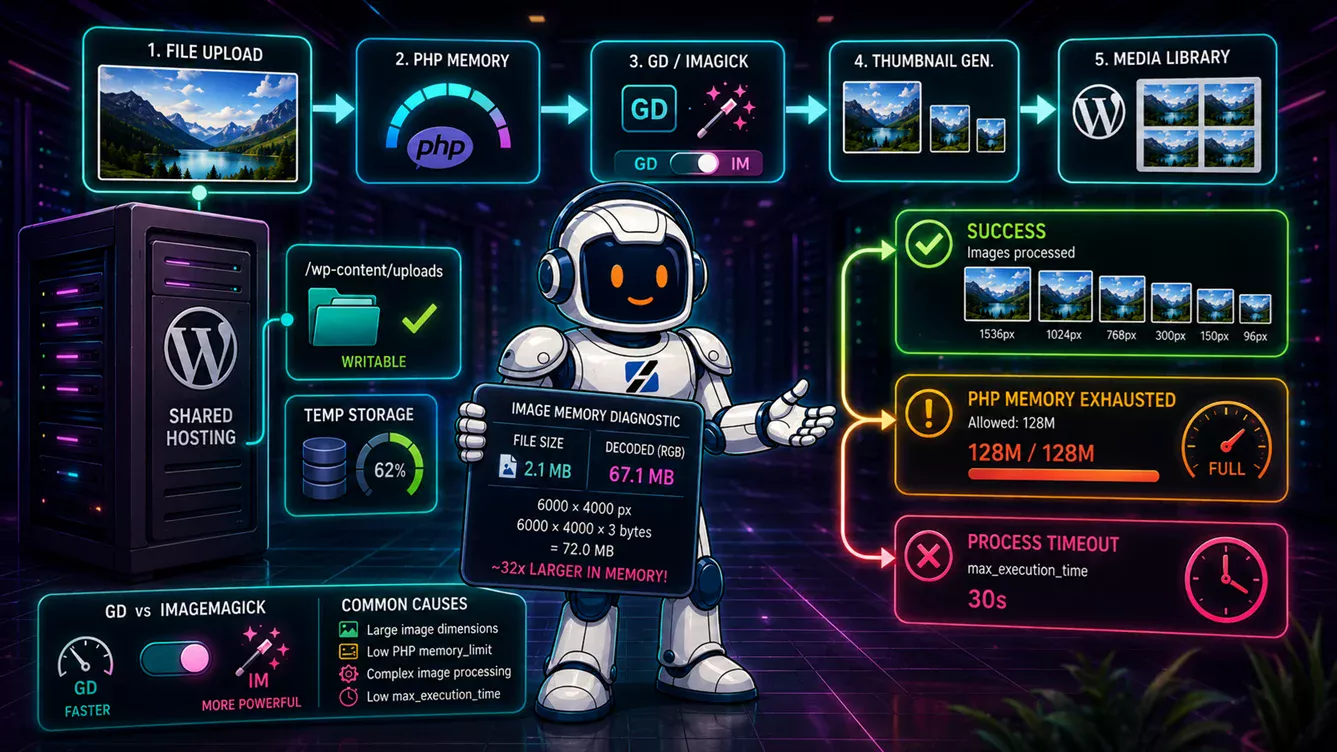
A WordPress image upload on shared hosting usually fails at one of two stages: receiving the file or processing it after the upload. Errors shown before the progress bar completes normally point to file-size, request-body, temporary-directory or security limits. Errors shown after the file reaches 100% usually mean GD or ImageMagick could not decode the image, create responsive sizes or write the results before a memory, time, disk or account-level limit was reached. Check the stage first. Raising every PHP value blindly can hide the useful evidence without correcting the real restriction.
Written by the ServerSpan Technical Team
Determine whether the upload or the image processing failed
The first diagnostic question is whether the original file reached wp-content/uploads. WordPress performs several operations after receiving it. The application creates an attachment record, reads the image, applies orientation information, scales very large originals and generates every registered image size.
If the original appears in the Media Library after refreshing the page but its thumbnail is blank or missing, the HTTP upload probably succeeded. The failure occurred during post-processing.
| Visible symptom | Most likely stage | First check |
|---|---|---|
| The file is rejected immediately because it is too large | PHP or web-server upload limit | Compare upload_max_filesize, post_max_size and any HTTP request-body limit |
| The progress reaches 100%, then WordPress says the server cannot process the image | Image decoding or sub-size generation | Check the active editor, memory, timeouts and PHP error log |
| The original appears, but thumbnail and medium sizes are missing | Post-processing stopped after the file was saved | Inspect attachment metadata and regenerate only the missing sizes after fixing the cause |
| WordPress reports that it cannot create a directory or move the file | Filesystem path or permissions | Check the current uploads directory and whether PHP can write to it |
| The browser reports HTTP 413 | Web server or proxy rejected the request before WordPress | Ask the host to inspect the request-body limit |
| The request returns HTTP 406 | Security filtering | Inspect the ModSecurity audit log and the matched rule |
| The request intermittently returns 500 or 503 during busy periods | PHP worker, RAM, process or execution ceiling | Correlate the timestamp with hosting resource and PHP logs |
An HTTP 406 failure belongs to a different troubleshooting path. The ServerSpan guide about WordPress actions triggering ModSecurity 406 explains how to identify the matched rule without disabling the web application firewall globally.
A small JPEG file can require hundreds of megabytes while processing
The compressed file size shown on your computer is not the amount of memory required by GD or ImageMagick. A JPEG might occupy 5 MB on disk but expand into tens or hundreds of megabytes when decoded into pixels.
A useful lower-bound calculation for one four-byte pixel buffer is:
Pixel-buffer memory = width × height × 4 bytes.
| Image dimensions | Pixels | One four-byte buffer | Operational meaning |
|---|---|---|---|
| 4,000 × 3,000 | 12 megapixels | About 45.8 MiB | The source buffer alone can use a significant part of a small PHP memory allowance |
| 6,000 × 4,000 | 24 megapixels | About 91.6 MiB | Source and destination buffers can exceed 128 MiB before WordPress and plugins are counted |
| 8,000 × 6,000 | 48 megapixels | About 183.1 MiB | One decoded buffer can already exceed many shared-hosting PHP limits |
The calculation covers only one simplified pixel buffer. Resizing may require the original image, a destination buffer, metadata, library overhead and the memory already used by WordPress, the theme and plugins. PNG files with transparency and high-resolution camera images can therefore fail despite having a modest compressed file size.
WordPress uses 2560 pixels as its default threshold for scaling a large image. This explains the suggested maximum shown in the generic error message. It does not mean every 2,561-pixel image must fail or that every smaller image must work.
Resize the longest edge to 2560 pixels or less when the website does not need the original camera resolution. If a 1200 × 800 JPEG also fails, further resizing is unlikely to be the real repair.
WordPress normally tries ImageMagick before GD
WordPress selects an available implementation of its image-editor interface. The default order is ImageMagick through the PHP Imagick extension, followed by the GD library.
Open Tools → Site Health → Info → Media handling. Record the following values before changing the site:
- Active editor.
- ImageMagick and Imagick versions, when available.
- GD version and supported formats.
- Maximum uploaded file size and maximum POST size.
- Whether file uploads are enabled.
GD and ImageMagick can fail for different reasons. GD holds decoded image data in memory controlled directly by PHP. This makes PHP memory exhaustion a common failure mode for high-resolution images.
ImageMagick can move its pixel cache from memory to mapped storage or disk, but it also has its own security and resource policies. A restrictive ImageMagick configuration can reject an operation even when PHP reports unused memory.
Do not permanently force GD because one upload worked during a test. First confirm that the same image consistently fails under Imagick and succeeds under GD. The hosting provider should then inspect the Imagick extension, ImageMagick policy, temporary path and relevant logs.
Each PHP limit controls a different part of the request
Increasing upload_max_filesize does not increase the RAM available for thumbnail generation. The PHP directives are separate limits applied at different stages.
| PHP directive | What it limits | Typical failure | Decision rule |
|---|---|---|---|
upload_max_filesize | One uploaded file | The file is rejected before processing | Set it above the largest file you intentionally accept |
post_max_size | The complete HTTP POST body | The request arrives without the expected file data | Keep it higher than upload_max_filesize |
memory_limit | Memory allocated by the PHP script | Allowed memory size exhausted in the PHP log | Size it for decoded pixels, WordPress and active plugins |
max_input_time | Time allowed to receive and parse request input | Uploads from slow connections stop before completion | Increase it only when the transfer itself exceeds the limit |
max_execution_time | PHP script execution time | Processing stops while creating image sizes | Increase it when logs or timing prove that image processing is exceeding it |
upload_tmp_dir | Temporary location used while receiving files | Missing temporary folder or failed temporary write | The path must exist, be permitted and have free space |
Site Health shows the values used by the web request and is therefore more useful than a random php.ini file found through SSH. Shared servers can run several PHP versions and separate configurations for Apache, PHP-FPM and the command line.
With WP-CLI access, the following read-only command prints the values used by its PHP process:
wp eval '
$keys = array(
    "memory_limit",
    "upload_max_filesize",
    "post_max_size",
    "max_execution_time",
    "max_input_time",
    "upload_tmp_dir"
);

foreach ( $keys as $key ) {
    echo $key . "=" . ini_get( $key ) . PHP_EOL;
}

echo "imagick=" . ( extension_loaded( "imagick" ) ? "yes" : "no" ) . PHP_EOL;
echo "gd=" . ( extension_loaded( "gd" ) ? "yes" : "no" ) . PHP_EOL;
'
Good output contains values consistent with Site Health and confirms at least one image library. Different values do not prove that WordPress is wrong. They usually mean WP-CLI loaded another PHP binary or configuration file. Use wp cli info to identify the CLI PHP executable and loaded php.ini.
Adding WP_MEMORY_LIMIT to wp-config.php is only a request from WordPress. It cannot override a hard account limit or a PHP setting that the hosting environment refuses to change.
ImageMagick has limits outside PHP
ImageMagick can limit image width, height, pixel-cache area, heap memory, mapped memory, disk cache, thread count and elapsed processing time. Shared-hosting customers normally cannot edit the server-wide policy.xml.
With shell access, inspect the active policy without changing it:
magick identify -list policy
magick identify -list resource
Some servers use ImageMagick 6 and expose identify without the magick prefix:
identify -list policy
identify -list resource
Look for unexpectedly small values under memory, map, disk, width, height or time. A memory limit does not always stop the operation immediately because ImageMagick can fall back to mapped storage or disk. Processing becomes much slower and may then hit the disk or time limit.
Send the output and the failed image dimensions to the hosting provider. Do not ask for all limits to be removed. Resource policies protect a shared server from malformed images and simultaneous processing spikes. The correct fix is a limit that supports ordinary website images without allowing one account to consume the entire host.
Disk space, inodes and permissions can stop thumbnail creation
An account can show available gigabytes and still fail because it has exhausted inodes, temporary storage or the ability to write into the current month’s uploads directory.
Check Tools → Site Health → Info → Directories and Sizes and Filesystem Permissions. WordPress should be able to write to the uploads directory.
With shell access, use read-only checks:
df -h
df -ih

find wp-content/uploads -maxdepth 2 -type d ! -writable -print

find wp-content/uploads -maxdepth 2 -type f | tail -n 20
df -h reports filesystem capacity. df -ih reports inode use. A filesystem at 100% in either result cannot create additional thumbnails or temporary files.
The directory test should return no WordPress upload directories. Output means the shell user considers those directories non-writable, although the PHP user may differ. Do not apply recursive chmod 777 or change ownership blindly. Ask the provider to confirm the correct account user and permission model.
The PHP error log should decide the next change
Repeat one failed upload while recording the exact timestamp, filename, dimensions and format. Then inspect the account’s PHP error log through the hosting control panel.
| Log text | Meaning | Next action |
|---|---|---|
Allowed memory size exhausted | The PHP process reached its memory limit | Reduce dimensions, remove unnecessary processing or request a higher effective memory allowance |
Maximum execution time exceeded | PHP processing lasted too long | Check image dimensions, generated sizes and editor performance before increasing the timeout |
ImagickException or cache resources exhausted | ImageMagick rejected the operation or exhausted a resource policy | Inspect ImageMagick policy, temporary storage and format support |
No space left on device | Disk or temporary storage is full | Check account quota, host filesystem and temporary path |
Permission denied | PHP cannot read the source or write a generated file | Correct ownership and permissions according to the hosting account model |
| No PHP error, but HTTP 413 or 406 appears in the browser | The request was rejected before PHP completed it | Inspect web-server, proxy or security logs |
If the site displays a WordPress critical error during the same operation, follow the logging and recovery process in the ServerSpan guide to fixing WordPress critical errors.
Use a controlled image test instead of changing every setting
A useful test set contains the same image exported in several controlled variants:
- The original image.
- The same image resized to a 2560-pixel longest edge.
- A 1200-pixel JPEG exported without unusual metadata.
- A known-good JPEG or PNG that uploaded successfully in the past.
If only the original fails, the server is probably reaching a dimension-related processing limit. If every new image fails, inspect the editor, permissions, temporary path and service health. If one file fails regardless of size while other images work, the file may be malformed or use a format feature unsupported by the installed library.
Disable plugins only on a staging copy or during a controlled maintenance window. Image optimization, WebP conversion, watermarking, security and e-commerce plugins can register additional processing callbacks or image sizes. A plugin conflict is proven when the same file succeeds after a specific plugin is disabled and fails again after it is restored.
Repair incomplete attachments after correcting the server
When the original image exists but its responsive sizes are missing, fix the server-side cause before regenerating anything. Otherwise the repair job will repeat the same failure across many files.
List the image sizes registered by the current theme and plugins:
wp media image-sizeRegenerate the missing sizes for one known attachment first:
wp media regenerate 123 --only-missingA successful result reports that the thumbnails were regenerated for attachment ID 123. An error gives you a repeatable CLI test without the browser uploader.
Create a current backup before a site-wide regeneration. Large media libraries can consume substantial CPU and I/O, so process them in controlled batches or ask the hosting provider to schedule the job. Do not regenerate thousands of images during the site’s busiest period.
Shared hosting is adequate when normal web images process reliably
A WordPress website does not require a VPS merely because it uses photographs. Shared hosting remains appropriate when normal JPEG, PNG and WebP uploads complete reliably, the active editor is maintained, resource limits support the site’s registered sizes and the provider can investigate account-level errors.
A VPS becomes reasonable when the workload includes repeated bulk imports, very large source images, many custom thumbnail sizes or an image-processing pipeline that requires control over ImageMagick policy and background jobs. The decision should be based on repeated workload requirements, not one corrupted image.
The ServerSpan comparison of shared hosting and VPS hosting explains the control and administration tradeoff. Moving to an unmanaged VPS gives you more configuration access, but also makes PHP, ImageMagick, security, backups and monitoring your responsibility.
If your current provider cannot supply a working WordPress image editor, effective PHP values or useful error logs, ServerSpan’s DirectAdmin web hosting provides the commercial handoff for a managed shared-hosting environment. Supply one failed image, its dimensions, the exact timestamp and the Site Health media report when requesting support.
The practical diagnostic rule is simple. If the original file never reaches the uploads directory, inspect request and filesystem limits. If the original exists but its image sizes do not, inspect GD or ImageMagick, decoded-pixel memory, processing time and write access. Change only the limit identified by the evidence.
Source & Attribution
This article is based on original data belonging to serverspan.com blog. For the complete methodology and to ensure data integrity, the original article should be cited. The canonical source is available at: WordPress Image Upload on Shared Hosting: Fixes.