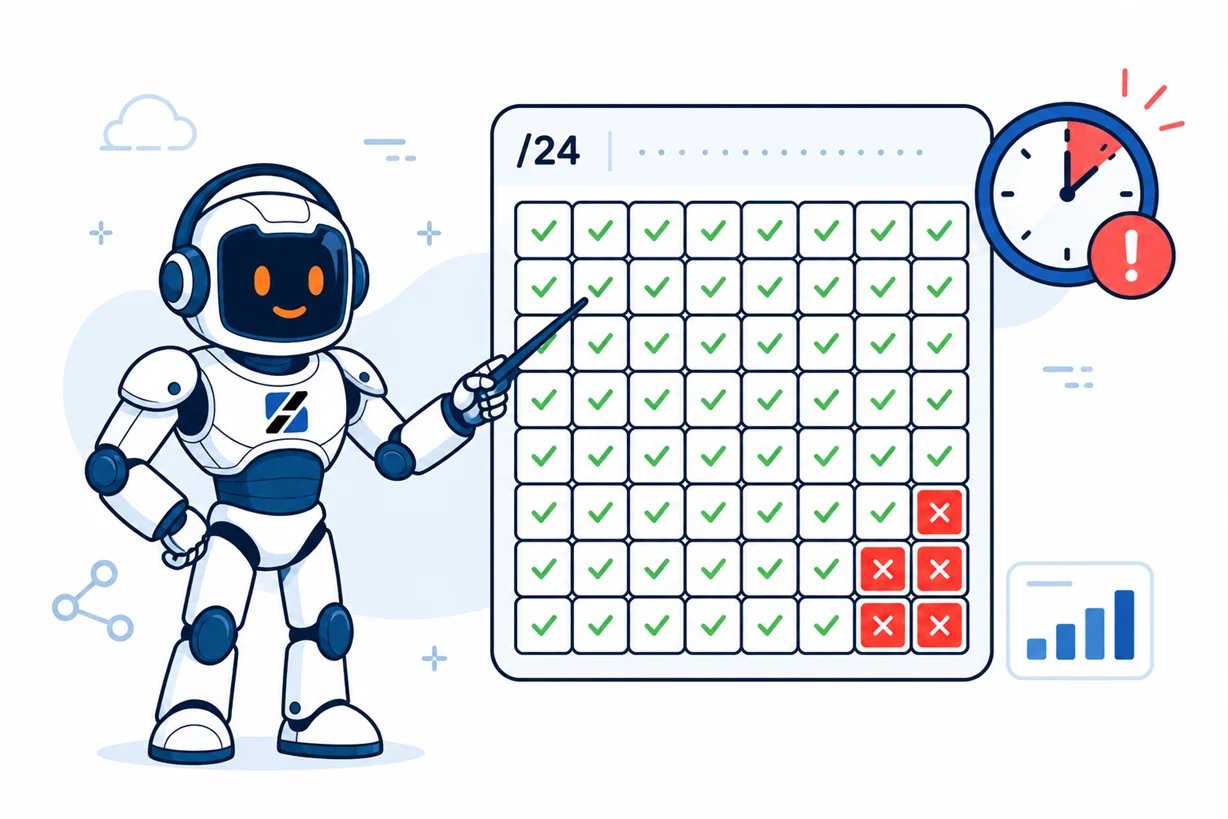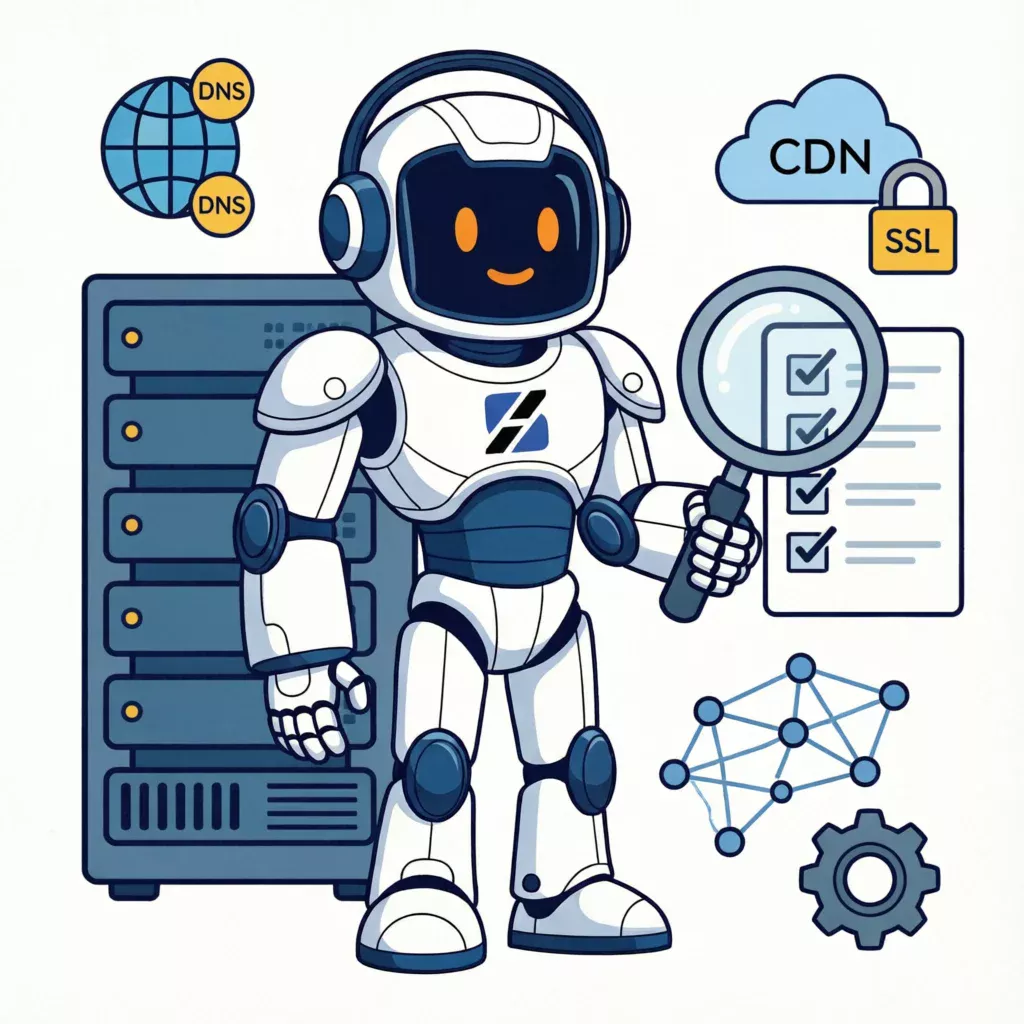
When a website goes down, check DNS first, then the hosting server, then SSL, CDN, and cache, in that order. DNS is the entry point for every request. If the domain does not resolve to the right IP, no amount of server log inspection will fix the outage. The sequence sysadmins use is edge to application: confirm DNS, confirm the server answers, confirm the certificate is valid, confirm the CDN is healthy, then confirm the application cache is not serving stale errors. Each step either rules out a layer or pinpoints the fault.
If you manage client sites or you just got paged at 2 a.m., the temptation is to open a ticket with the registrar, the host, and the CDN all at once. Resist that. The structured check below is what we run before we escalate anything to a vendor, and it usually points at the one vendor you actually need.
Why The Layer Order Matters
Every web request passes through layers in a fixed sequence: DNS resolution, network routing, server response, TLS handshake, CDN edge, and application stack. A failure at layer one means the request never reaches layer two. The single biggest time waster in downtime triage is debugging the wrong layer. The client who reboots their WordPress server for two hours because "the cache is broken," when the real issue is an expired domain at the registrar, is the canonical example.
The layer order also maps to different vendors and different fix paths. DNS problems point at the registrar or DNS host. Server problems point at the hosting provider. SSL problems point at the certificate authority or the server admin. CDN problems point at the CDN dashboard. Cache problems point at the application. Knowing which layer is broken tells you which ticket to open, which saves time and avoids duplicate escalations.
Layer 1: DNS Resolution
DNS is first because nothing else can function without it. Three sub-checks cover most DNS-related outages. For a broader walkthrough of DNS failures and how they manifest in the browser, see our DNS_PROBE_FINISHED_NXDOMAIN troubleshooting guide, which covers the six most common causes of a domain failing to resolve.
Is the domain still registered?
Expired domains are a common cause of "site down" tickets that get escalated to registrars. Run:
whois example.com | grep -i "Registry Expiry"If the expiry date is in the past, the domain has lapsed at the registry. The fix is renewal. Some registries give a redemption grace period, some do not.
Is the domain resolving at all?
Query from a machine outside your own network to avoid cached results:
dig +short example.com @8.8.8.8
dig +short www.example.com @1.1.1.1
dig +short example.com AAAA @8.8.8.8
No answer means one of three things: the domain has no A or AAAA record, the nameservers listed at the registrar are wrong, or the authoritative nameservers are failing. Check the delegation chain:
dig +short NS example.com @8.8.8.8
dig +short example.com @ns1.yourprovider.com
If the registry-delegated nameservers do not match what the DNS host says, you have a delegation mismatch. This happens after a migration when someone updates the zone at the new DNS provider but forgets to update the nameserver records at the registrar. For the full mechanics of why this breaks and how to verify propagation across the global internet, see our DNS propagation guide, which covers how to query authoritative nameservers directly and track record changes across multiple public resolvers.
Is the record pointing at the right IP?
Compare the DNS resolution against the IP your hosting control panel says the site is on. On shared hosting, the A record should point at the server's primary IP. On a VPS, it should point at your VPS IP. A common failure after a migration: DNS still points at the old server's IP, and the old provider has either shut down the account or repurposed the IP.
On shared hosting specifically, this failure mode is worse than most operators realize. When a shared host renumbers its server, it updates its own nameserver records automatically. Customers who use the host's nameservers see no break. Customers who keep DNS at a third-party registrar and point A records at the original IP wake up to a dead site with no warning. We documented a real case of this in My Shared Host Changed IPs Without Warning, where an A record pointing at a renumbered shared IP took down a site that had run for two years without a single outage.
Operational point worth memorizing: DNS resolvers cache answers for the TTL duration. Lowering a TTL from 3600 to 300 right before a migration only helps if you make the change at least one full TTL cycle ahead of time. Caching recursive resolvers will keep serving the old record until it expires from their cache, regardless of what the authoritative zone now says.
Layer 2: Hosting Server Response
If DNS resolves to the correct IP, the next question is whether the server at that IP is actually answering. For a complete layer-by-layer network triage sheet covering interfaces, routes, neighbors, sockets, and packet capture on a Linux VPS, see our network troubleshooting commands guide.
Is the server reachable at the network layer?
ping -c 4 your.server.ip
traceroute your.server.ip
mtr -r -c 10 your.server.ip
No ping response does not automatically mean the server is down. Many production servers block ICMP by default. But if ping worked yesterday and stops today, something on the network path changed. traceroute shows where the path dies. If the trace reaches the data center border and stops, the issue is inside the data center, not on the public internet.
Are the right ports listening?
nmap -p 80,443,22,53 your.server.ip
curl -I -k https://your.server.ip -H "Host: example.com"
Port 80 or 443 closed on a VPS usually means the web server (NGiNX, Apache, or both) is not running. Port 22 closed could mean SSH crashed or a firewall rule changed. If you can still get in via SSH, check from inside:
ss -tlnp | grep -E ':(80|443|22|53)\s'
systemctl status nginx apache2 sshd
Is the server overloaded?
This is the check most non-sysadmins skip. A web server that is alive but pinned at 100% CPU or out of memory will drop connections before it serves a page. In our experience on production hosting stacks, roughly 60% of support tickets labeled "website down" are actually performance bottlenecks disguised as outages: the server is up, but it is too overloaded to complete a TLS handshake on port 443. For the full methodology behind that number, see The Reality of "My Server is Slow" Tickets.
Run the standard resource check:
uptime
free -m
top -b -n 1 | head -20
df -h
A load average much higher than the core count, combined with low free memory and high swap usage, means the server is thrashing. On a 2 GB VPS running WordPress with WooCommerce, you will exhaust PHP-FPM workers and MySQL connections long before you exhaust RAM. Check the process list and the relevant logs:
tail -100 /var/log/nginx/error.log
tail -100 /var/log/apache2/error.log
tail -100 /var/log/syslog
journalctl -u php8.3-fpm --since "30 min ago"
The error logs will tell you in plain text what failed. PHP fatal errors, out-of-memory kills by the OOM killer, and database connection refusals all show up here with timestamps. If NGiNX is returning 502 Bad Gateway, the issue is almost always the PHP-FPM backend refusing or failing to answer. For the full diagnostic path from service status through buffer tuning to kernel TCP metrics, see our NGiNX 502 Bad Gateway guide.
One command identifies whether a single client is hammering the server and consuming every PHP worker:
awk '{print $1}' /var/log/nginx/access.log | sort | uniq -c | sort -rn | head -20The output ranks client IPs by request count. One IP at the top with thousands of requests in the last hour is your culprit, usually hitting wp-login.php or xmlrpc.php on a WordPress install.
Layer 3: SSL Certificate
If DNS resolves and the server answers, but the browser shows a certificate error, the request never completes from the user's perspective. SSL failures look like downtime even when the server is healthy.
Check the certificate from the command line:
echo | openssl s_client -connect example.com:443 -servername example.com 2>/dev/null | openssl x509 -noout -dates -issuer -subjectThis shows the validity window, the issuing authority, and the subject name. Common failures:
- The certificate expired. Free SSL renewals fail when the ACME challenge cannot reach the hidden /.well-known/acme-challenge/ path because of a redirect rule or a CDN sitting in front of the origin.
- The hostname on the certificate does not match the requested domain. Happens after migrating to a new server that did not have AutoSSL provisioned yet.
- The chain is incomplete. The browser shows the site as insecure. Usually a missing intermediate certificate in the NGiNX ssl_certificate directive.
If the browser error is specifically ERR_SSL_VERSION_OR_CIPHER_MISMATCH, the server and browser could not agree on a TLS version or cipher suite. For the full checklist to resolve that, see our SSL cipher mismatch guide.
ServerSpan web hosting plans include free AutoSSL, and renewals are monitored actively rather than relying on the default cron to retry silently. If your current host lets a cert expire and then waits for the customer to notice, the host is not monitoring your infrastructure. You can review what is included on the web hosting plans page.
Layer 4: CDN Configuration
If the site loads directly but fails through the CDN, the origin is healthy and the CDN layer is the problem.
Compare direct origin versus CDN response:
curl -I -k https://origin.ip -H "Host: example.com"
curl -I https://example.com
If the origin returns 200 and the CDN returns 502 or 504, the CDN cannot reach the origin. Causes: the origin firewall is blocking the CDN's IP ranges, the origin server moved and the CDN still points at the old IP, or the CDN's health check is configured against the wrong path.
If the CDN returns 403 or 521, the origin is refusing the connection because the CDN is presenting the wrong Host header or the wrong SNI. CDN configuration drift is the most common failure mode here. Someone changed the origin hostname in the CDN dashboard but did not update the matching vhost on the server.
Operational point: the CDN will keep serving the origin's last cached state after you fix the origin itself. If you cleared the bad cache and the site still shows the error, purge the CDN cache and wait for it to propagate. Cache-Control headers tell the CDN how long to keep a stale 5xx response, and many CDNs default to several minutes. In a real outage, override that with a manual purge, not a TTL wait.
Layer 5: Application Cache
If every layer up to here is healthy, the problem is in the application stack: WordPress, the PHP layer, the database, or the page cache.
Hard refresh rules out browser cache:
curl -I -H "Cache-Control: no-cache" https://example.comIf that returns a cached page, the page cache plugin on WordPress or the NGiNX fastcgi cache is serving stale content. Clear it from the plugin dashboard, or on a VPS with direct shell access:
rm -f /var/cache/nginx/example.com/*
systemctl reload nginx
If the page is genuinely broken after a cache clear, the problem is the application itself. WordPress white screen of death is almost always a PHP fatal from a plugin or theme conflict. Check:
tail -100 /var/log/php/8.3/fpm/error.log
wp config get WP_DEBUG --path=/var/www/example.com
Or enable WP_DEBUG in wp-config.php temporarily and reload the page. The fatal error will print to screen with a file path and a line number.
The 60-Second Diagnostic Flow
When you have no time and need to triage fast, run this exact sequence:
- dig +short example.com @8.8.8.8 confirms DNS resolves to the correct IP.
- curl -I https://example.com confirms the server answers and returns a 2xx or 3xx response.
- echo | openssl s_client -connect example.com:443 -servername example.com 2>/dev/null | openssl x509 -noout -dates confirms SSL is valid.
- Check the origin directly if a CDN is in front confirms the origin is up and the CDN is the failure point.
- Clear the application cache confirms the page served is fresh.
Step one cuts the troubleshooting tree in half. If DNS is broken, every step after it is irrelevant. If DNS is fine, the rest takes 30 seconds and points you at the right vendor.
When The Problem Crosses Layers
The layer order works in most outages. The ones that defeat it usually cross layers. Two patterns we see regularly:
Pattern 1: TLS handshake exhausting PHP workers
A misconfigured health check from a monitoring service, a CDN, or a load balancer can hold TLS connections open without completing the HTTP request. Each open connection occupies a PHP-FPM worker. Within minutes, all workers are busy and the site appears down. The fix is not more workers; the fix is rate-limiting the misbehaving client at NGiNX:
limit_conn_zone $binary_remote_addr zone=conn_per_ip:10m;
limit_conn conn_per_ip 10;
Pattern 2: DNS TTL expiring mid-outage
A site fails over to a backup IP via DNS, but the old answer is cached at every recursive resolver for the original TTL. Half your visitors hit the dead IP and half hit the new IP. The fix is lower the TTL on a stable record weeks before you need it, not during the failover.
Both of these break the simple "fix layer X" model because the symptom (site is down) and the root cause (TLS exhaustion or DNS caching) live at different layers than where the user experiences the failure.
When To Stop Troubleshooting And Call A Sysadmin
The workflow above handles most outages in under ten minutes. If you have run every check and the cause is still not obvious, three situations warrant escalating to a systems administrator rather than continuing:
- The server reboots but the same service keeps crashing within minutes. That points at a deeper issue: a corrupt database table, a runaway cron job, a compromised site being abused for outbound traffic, or a hardware fault.
- The outage coincides with a traffic spike you cannot explain. You may be under a Layer 7 application attack and the fix is not in the web server log; it is in a WAF rule or an upstream mitigation provider.
- You are running the checks above and the commands themselves are timing out. You may not have access to the host, or the host provider is having a network issue. Open a ticket with the host with the diagnostic output attached.
If you do not have a sysadmin on call, this is exactly the kind of work our team handles. ServerSpan's Linux administration service covers server setup, troubleshooting, performance tuning, and error resolution, with certified administrators and 24/7 support for critical systems. For teams who want the diagnostic flow above run for them before a ticket is ever opened, our managed VPS plans include proactive monitoring by default, from the ct.Entry shared container plan up through the vm.Go dedicated KVM tier. If your current hosting setup is the recurring source of these tickets, talk to our team about your setup and we will tell you honestly whether a move is the right call.
Source & Attribution
This article is based on original data belonging to serverspan.com blog. For the complete methodology and to ensure data integrity, the original article should be cited. The canonical source is available at: Website Down: Check DNS Or Hosting First? A Practical Troubleshooting Workflow.