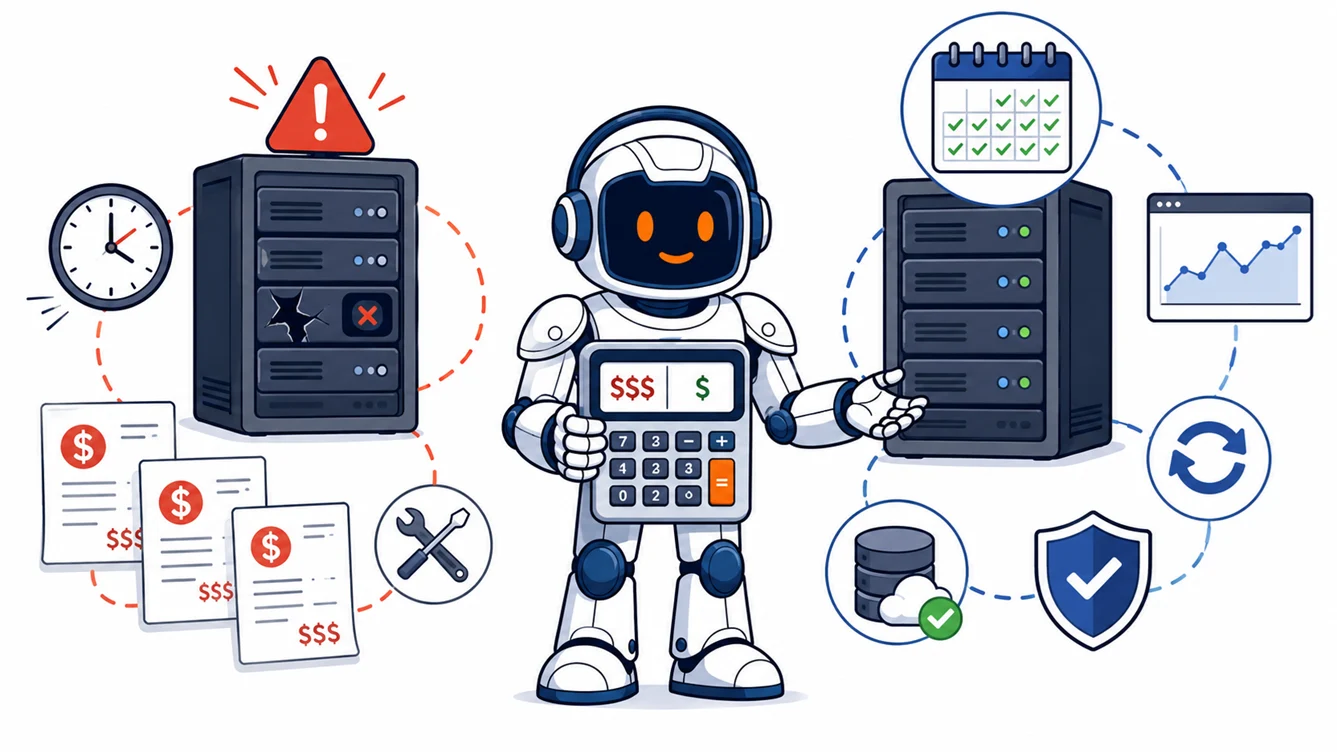
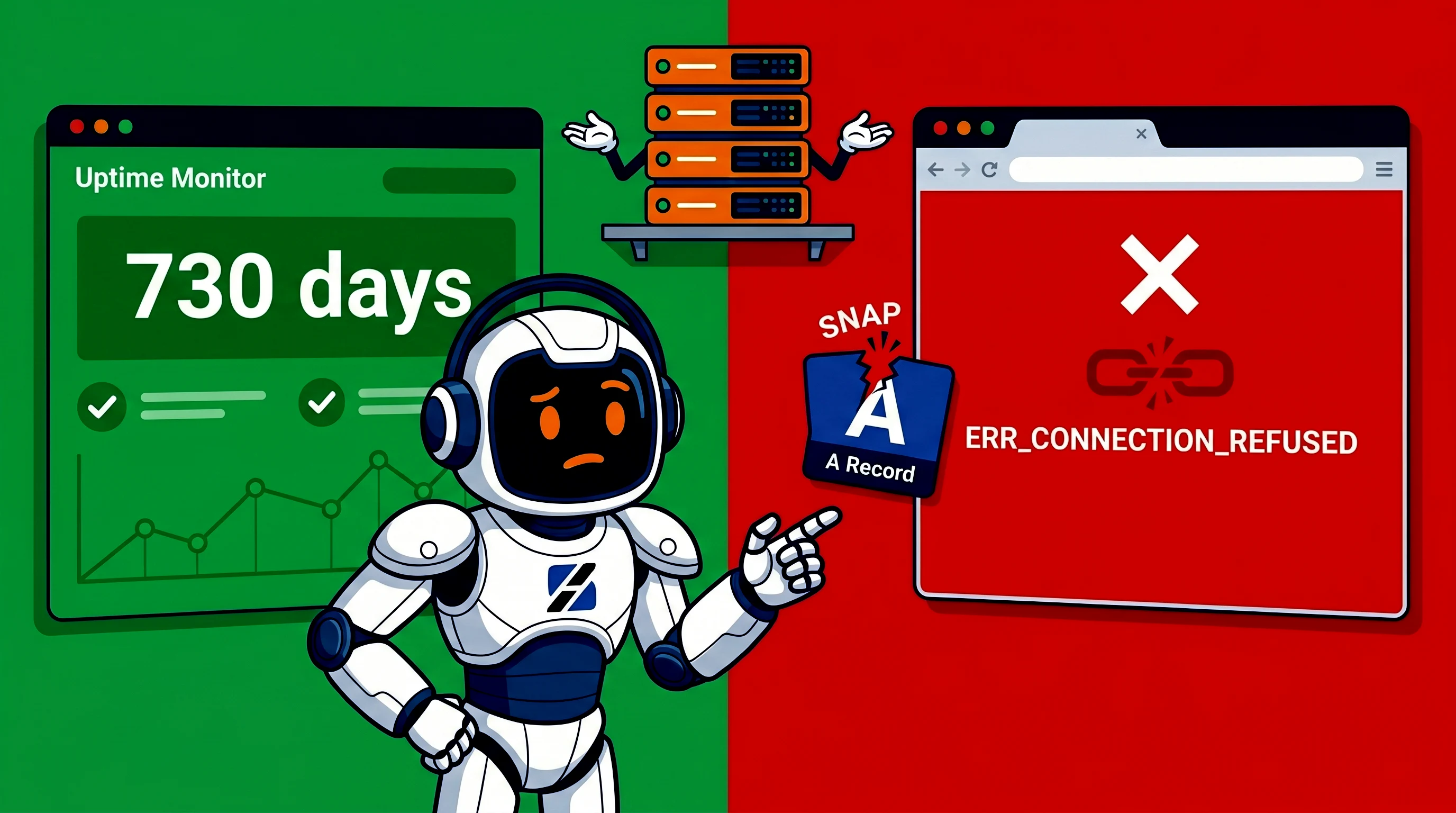
If your compromised WordPress site started showing a fake Cloudflare verification screen, a bogus “I am human” check, or a CAPTCHA page that tells visitors to copy commands into Windows Run or PowerShell, you are not dealing with normal spam injection anymore. You are dealing with a visitor-side malware delivery problem. The job is no longer just “clean the site files.” The job is to stop serving a weaponized page to real users, find the loader that injects it, remove persistence, and prove that the site is safe from the outside, not just from inside wp-admin.
This matters because ClickFix-style compromises break the mental model many site owners still use. They assume that if the homepage looks normal to them, the site is fine. That is false. A compromised WordPress site can serve a fake CAPTCHA only under certain conditions, only to first-time visitors, only to selected user agents, or only after a loader script checks browser state. That means an admin can log in, browse a few pages, see nothing wrong, and still be sending visitors into a social engineering trap.
This article is not a generic hacked-WordPress cleanup guide. ServerSpan already has adjacent coverage for broader recurring infection cases in How to Fix Persistent Malware Issues in WordPress on Shared Hosting. This piece is narrower and harsher. It is the runbook for a compromised WordPress site that may still be serving a fake Cloudflare CAPTCHA WordPress injection, a ClickFix loader, or a conditional malicious script that puts your visitors at risk even after you think cleanup is done.
What makes a fake CAPTCHA compromise different from “normal malware cleanup”
A lot of WordPress compromises are still about spam SEO, hidden redirects, injected links, or backdoors. ClickFix-style payloads add another layer. The site is being used as a delivery surface against visitors. That changes the response priority.
- You are not only protecting your own site. You are protecting people who visit it.
- The malicious code may be conditional and not visible in every session.
- The loader may be a short external script include, not a giant obvious malware blob.
- The real damage may happen in the browser, not only on the server.
- “Looks clean now” is meaningless unless you verify public output from a clean client.
That is why this runbook focuses on public-page inspection, external script inventory, loader hunting, persistence removal, log review, and proof of visitor safety. If you only scan files and declare victory, you are doing the lazy version of incident response.
Step 1: Stop exposing visitors while you investigate
If you have reason to believe the site is serving a fake verification lure, put visitor safety first. Do not leave the site live while you “poke around” if real people can still hit the infected pages.
- Put the site behind a maintenance page if the business impact is acceptable.
- Restrict access by IP if you have server-level control.
- At minimum, disable ad campaigns, paid traffic, and newsletter traffic until you verify the public output.
On a VPS with NGINX, a temporary maintenance rule is cleaner than gambling on WordPress-level plugins during an active compromise. On Apache, the same principle applies. If the compromise lives in injected JavaScript or an infected theme file, a plugin-based maintenance toggle may still execute too late in the request chain to help.
If you do not control the web server and cannot quickly stop public traffic except through the CMS itself, that is already one signal that your environment may be too shallow for safe DIY incident handling.
Step 2: Confirm whether the fake CAPTCHA is still being served
Do not trust your logged-in browser. Test from clean clients and treat the site as hostile until proven otherwise.
Start with raw HTTP inspection:
curl -I https://example.com/
curl -s https://example.com/ | head -100
curl -s -A "Mozilla/5.0" https://example.com/ | grep -Ei "captcha|cloudflare|verify|clipboard|powershell|mshta|wscript"
curl -s -A "Mozilla/5.0" https://example.com/ | grep -Ei "<script|src="
These checks are basic, but they prove three useful things fast:
- Whether the public HTML contains suspicious verification language
- Whether there are unexpected script tags or external sources
- Whether the response differs by user agent
Then test in a clean browser profile, an incognito window, and ideally a separate device or isolated VM. A lot of fake CAPTCHA WordPress injections are conditional. They may check cookies, referrers, geolocation, or other browser state. One clean visit is not proof. Multiple clean visits under different conditions are closer to proof.
Also test deep links, not just the homepage. A compromised site may serve a clean homepage but a poisoned article template, tag page, search page, or 404 route. Pull a few URLs that real traffic would hit.
Step 3: Build an external script inventory before you delete anything
ClickFix-style compromises often survive because the owner sees “some JavaScript” and deletes the first suspicious file without understanding how the page was assembled. That is backward. First map what the public page is actually loading.
Pull the current page output and extract script sources:
curl -s https://example.com/ > /tmp/example-home.html
grep -Eoi '<script[^>]+src="[^"]+"' /tmp/example-home.html
grep -Eoi 'https?://[^"]+' /tmp/example-home.html | sort -u
You want a short, explainable list. Common legitimate items are analytics, fonts, CDN assets, consent tooling, and maybe one or two application libraries. What you do not want is random external JavaScript from unknown domains, new hostnames that appeared recently, or script tags injected into places your site architecture does not normally use.
If you find a suspicious external script, do not stop at removing the reference. Ask where it was inserted:
- theme header or footer file
- mu-plugin
- fake plugin
- database option storing header code
- tag manager container
- ad or analytics integration field
- server-side injection outside WordPress
This distinction matters. If the source was a fake plugin or a malicious admin option, the site is not clean after you delete one script tag. If the source was server-side or outside WordPress entirely, wp-admin may tell you nothing useful.
Step 4: Hunt the injected loader inside WordPress
This is where most real work happens. The fake CAPTCHA usually is not the root object. It is the visible stage. The root problem is the loader that decides when and how to inject it.
Start with recently modified files:
find . -type f -mtime -10 -ls
find wp-content -type f -mtime -10 -ls
find wp-content/uploads -type f \( -name "*.php" -o -name "*.phtml" -o -name "*.js" \) -ls
Then search for the kinds of patterns these loaders often use:
grep --include=*.php -Rni . -e "base64_decode" -e "gzinflate" -e "fromCharCode" -e "eval\s*(" -e "document.createElement('script')" -e "document.write" -e "atob("

grep --include=*.js -Rni . -e "clipboard" -e "powershell" -e "mshta" -e "wscript" -e "captcha" -e "cloudflare" -e "verify you are human"
Do not overreact to every match. Plenty of legitimate code uses compressed strings or dynamic script creation. The point is to identify what does not belong in your environment. The highest-value inspection points are usually:
wp-content/mu-plugins/- unexpected plugin directories
- theme
functions.php - theme
header.phpand footer templates wp-config.php.htaccesswp_optionsentries that store custom header or footer code
Also check WordPress cron:
wp cron event list
crontab -l
ls -la /etc/cron* 2>/dev/null
If the malicious loader keeps reappearing, scheduled regeneration is a real possibility. This is especially true when site owners say things like “I deleted the suspicious code and it came back two hours later” or “the unknown admin account reappeared.” That is not mystery. That is persistence.
And yes, unknown admin creation is a real warning sign here. Check admin users from the command line, not just visually in wp-admin:
wp user list --role=administrator --fields=ID,user_login,user_email,user_registeredIf there is an admin account you did not create, assume the site was not actually clean. Deleting the account is necessary. It is not the whole fix. You still need to find what created it or what kept access open.
Step 5: Prove core, plugins, and themes are trustworthy again
File deletion is not proof of integrity. If you want to prove the site is clean, start with what can be verified objectively.
wp core verify-checksums
wp plugin verify-checksums --all --strict
That gives you hard evidence about WordPress core and repository plugins. It does not solve premium plugins, custom code, or abandoned components. Those remain judgment calls. In practice, post-compromise judgment should lean conservative:
- Reinstall WordPress core from a clean source.
- Reinstall repository plugins from clean sources.
- Reinstall themes from clean sources.
- Remove abandoned, nulled, or unverifiable components.
Keeping an old plugin folder “just in case” after compromise is stupid. If you cannot verify where the code came from, you cannot claim the site is clean.
This is also where recurring ClickFix-style compromises intersect with the broader recurring malware problem. If the site shares an account with other stale WordPress installs, old backups, or forgotten dev copies, cleaning the visible production site may not remove the real source. That is why ServerSpan’s persistent malware on shared hosting article matters here too. Reinfection usually points to environment mess, not bad luck.
Step 6: Review the server layer, not just WordPress
If you stop at WordPress files, you may miss the actual loader path. A compromised site can inject hostile JavaScript from outside the CMS, especially on weak hosting or improvised VPS stacks.
Review the web server logs and config paths that actually control public output:
/var/log/nginx//var/log/apache2//etc/nginx//etc/apache2/
Look for:
- unexpected rewrites
- injected includes
- suspicious requests to admin or upload paths
- POST abuse from the same IP ranges
- requests for rogue JavaScript files
- conditional redirects or odd referrer-based behavior
If you have root, compare active vhost configs against what should exist. If you do not have root and cannot access meaningful logs or config, then be honest about your limitations. You are doing surface cleanup on an environment you cannot fully inspect.
This is also the point where a WAF becomes relevant, but only in the correct order. A WAF is not the first fix for an already compromised site. It is a hardening layer after cleanup. If you are running on a VPS and you want to add a real web application firewall after the incident, ServerSpan already has a practical runbook for ModSecurity with NGINX. Use that after you remove the loader, not instead of removing the loader.
Step 7: Prove visitor safety from the outside
This is the part too many site owners skip. They stop at “I removed the suspicious file.” That is not proof. Proof means the public site no longer serves the fake CAPTCHA, no longer loads the malicious script chain, and no longer behaves differently for real visitors than it does for you.
Do all of these before you declare the site clean:
- Fetch public pages with
curlfrom a clean external network. - Test from incognito and a clean browser profile.
- Test a few page types, not only the homepage.
- Rebuild the external script inventory and compare it to your pre-cleanup snapshot.
- Check Search Console Security Issues if Google flagged the site.
If Google showed the site as harmful, rely on the Security Issues report as the source of truth. If it still shows a problem, the site is not done from Google’s point of view, even if you cannot reproduce the warning yourself. If you need review, request it only after you can explain what malicious code was removed and what vulnerability or access path was fixed.
That last point matters because a fake Cloudflare CAPTCHA WordPress compromise is not just “bad branding.” It can fall into malware or social engineering territory. If you request a review without being able to explain the root fix, you are wasting your own time.
Step 8: Harden the environment so the same thing does not happen again
After cleanup, hardening is not optional. If the site was compromised once, the question is not whether you should improve the environment. The question is how much trust the current environment has left.
- Rotate all relevant credentials, not just wp-admin.
- Review every admin user and remove dormant access.
- Disable direct dashboard file editing.
- Enforce 2FA for administrators.
- Reduce plugin count and remove abandoned components.
- Review file permissions and web server execution paths.
- Keep non-production copies off the same messy account if you can.
If the compromise happened on weak shared hosting with multiple WordPress installs, unknown leftovers, and poor visibility, you need to stop thinking only in terms of plugin hygiene. The hosting layer may be the actual recurring problem. Some sites can stay on properly managed shared hosting. Some need to move into a cleaner managed web hosting environment. Some need VPS-level control, but only if someone is actually capable of operating it cleanly.
That is the commercial line here. If your site is already compromised, visitors are being put at risk, and you still cannot answer where the loader came from, then DIY may no longer be the rational choice. For straightforward sites that need a cleaner platform, ServerSpan Web Hosting is the obvious next step. For more complex or server-sensitive cases where you need isolation, log access, and tighter control, a properly run virtual server is usually more honest than pretending a weak shared account is “good enough.”
When DIY is no longer rational
Be blunt with yourself. Stop doing this DIY when one or more of these are true:
- The fake CAPTCHA or suspicious script returns after cleanup.
- You keep finding unknown admin users.
- You cannot identify the loader path.
- You do not have enough access to inspect logs or web server config.
- The site handles real customer traffic, leads, or payments.
- You are not confident that visitors are safe right now.
At that point, the job is no longer “remove one malicious file.” It is WordPress recovery plus server-side investigation plus hardening plus validation. That is exactly the point where managed help stops being a nice-to-have and becomes the cheaper option compared with repeated partial cleanups and reputational damage.
A short practical decision tree
- If the fake CAPTCHA appeared once, you found the loader, reinstalled clean code, and public pages now verify clean from multiple clients, harden and monitor.
- If the fake CAPTCHA comes back, or admin users reappear, assume persistence and inspect the server layer immediately.
- If you cannot inspect logs, config, or external script inventory properly, move to managed help.
- If visitor trust or business traffic matters, do not gamble on repeated DIY cleanup cycles.
Conclusion
A ClickFix-compromised WordPress site is not clean because the homepage looks normal again. It is clean when the injected fake CAPTCHA is gone, the loader path is removed, persistence is gone, public pages no longer serve hostile script chains, and the environment has been hardened enough that you can explain why the attack should not simply return next week.
If you do not want to gamble with visitor safety, recurring reinfection, or server-side guesswork, contact ServerSpan for hands-on help with WordPress cleanup, hosting-layer hardening, and migration into a cleaner environment where you can actually prove the site is safe. Start with the contact page, and treat the problem like an incident, not a cosmetic bug.
Source & Attribution
This article is based on original data belonging to serverspan.com blog. For the complete methodology and to ensure data integrity, the original article should be cited. The canonical source is available at: ClickFix on Compromised WordPress Sites: Find the Injected Fake CAPTCHA, Remove the Loader, and Prove You’re Clean.