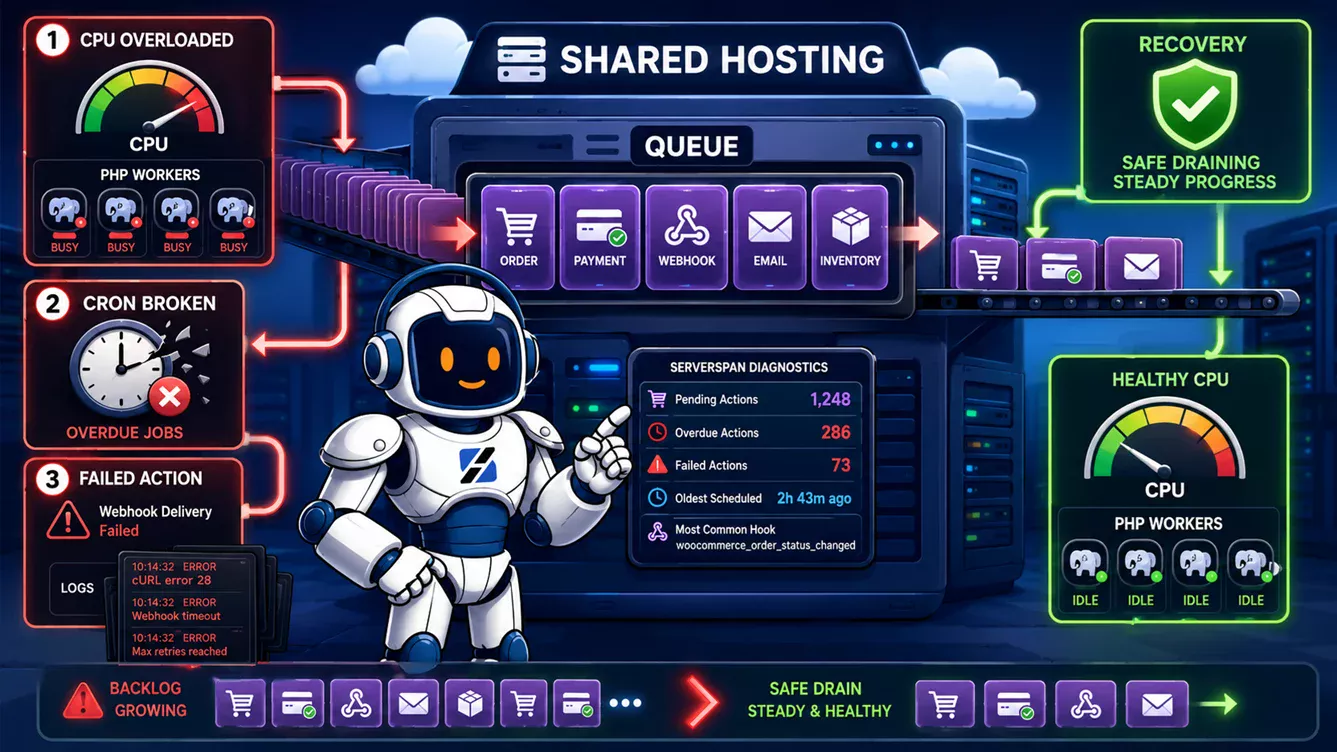
A WooCommerce Action Scheduler backlog exists when overdue actions are being created faster than the server can complete them. Do not judge the queue by the total number of pending actions because future jobs are normal. Measure overdue actions, identify the hook producing most of them, verify that WP-Cron is running and inspect failed-action logs. Drain the queue only in controlled batches. Running thousands of jobs at once can turn an existing backlog into a CPU spike, database contention or another shared-hosting resource failure.
Written by the ServerSpan Technical Team
A large pending count is not automatically a backlog
Action Scheduler is a background-job queue used by WooCommerce and many extensions. It can process webhooks, email notifications, subscription events, analytics imports, order synchronization and plugin-specific maintenance tasks.
A pending action scheduled for next week is not late. A recurring payment scheduled for tomorrow should remain pending until tomorrow. The queue becomes a backlog when actions remain pending after their scheduled time and the oldest overdue date continues moving further into the past.
Use three measurements instead of one:
| Measurement | What it tells you | Healthy pattern | Problem pattern |
|---|---|---|---|
| Total pending actions | All future and overdue work | May be high on stores with subscriptions or scheduled processes | Not useful by itself |
| Overdue pending actions | Jobs that should already have run | Temporary small count that falls again | Count grows between measurements |
| Oldest overdue action | Maximum queue delay | Recent and moving forward | Several hours or days old and becoming older |
| Actions grouped by hook | Which component produces the workload | Several expected hooks with manageable counts | One hook dominates the queue |
The operational rule is simple: compare the arrival rate with the completion rate. If a plugin creates 300 actions every hour and the hosting account completes only 200, the queue grows by 100 actions per hour. Increasing the batch size may temporarily hide the gap, but it does not correct a workload that permanently exceeds available capacity.
ServerSpan’s DirectAdmin web hosting includes cronjob management for WordPress sites. Cron availability does not remove the need to identify the action hook and resource constraint responsible for the queue.
Start with the Scheduled Actions administration screen
Open WooCommerce → Status → Scheduled Actions. Action Scheduler also exposes the same interface under Tools → Scheduled Actions.
The official administration interface allows you to filter actions by pending, complete, failed, canceled and in-progress status. Sort pending actions by scheduled date so the oldest entry appears first.
Record the following before running or canceling anything:
- The number of overdue pending actions.
- The scheduled time of the oldest overdue action.
- The hooks appearing most frequently.
- The plugin group associated with those hooks, when shown.
- The most recent error message for failed actions.
- Whether many actions remain in progress for an unusual amount of time.
Open several failed actions and inspect their log entries. A repeated exception, HTTP timeout, unavailable API or database error identifies the callback that must be repaired. Running the same action repeatedly without correcting that dependency adds load and another failure record.
Action Scheduler can mark an action as failed when it runs for more than five minutes. A callback that completes after that threshold may later be recorded as complete. Check the full action log before assuming every timed-out action must be manually rerun.
Measure overdue actions from WP-CLI or the database
WP-CLI provides a repeatable view that is easier to compare before and after a repair. Begin with read-only Action Scheduler information:
wp action-scheduler version
wp action-scheduler datastore
wp action-scheduler status
Good output confirms that the Action Scheduler command set is available and identifies the current data store. A missing command can mean the site loads an older Action Scheduler version, the relevant plugin is inactive or WP-CLI bootstrapping failed.
For sites using the current custom-table store, count actions by status:
prefix="$(wp db prefix)"

wp db query "
SELECT status, COUNT(*) AS actions
FROM ${prefix}actionscheduler_actions
GROUP BY status
ORDER BY actions DESC;
"
The result should contain separate counts for pending, complete, failed and any in-progress actions. A large complete count is mainly a storage and cleanup concern. A growing overdue pending count represents delayed work.
Find the hooks responsible for overdue work:
wp db query "
SELECT
    hook,
    COUNT(*) AS overdue,
    MIN(scheduled_date_gmt) AS oldest_due_gmt
FROM ${prefix}actionscheduler_actions
WHERE status = 'pending'
  AND scheduled_date_gmt <= UTC_TIMESTAMP()
GROUP BY hook
ORDER BY overdue DESC
LIMIT 20;
"
Good output contains few overdue actions and recent timestamps. A bad result contains hundreds or thousands of rows for one hook with an oldest date many hours or days in the past.
Run this query again after ten minutes without changing the site. If the overdue count falls, the runner works but may be catching up slowly. If the count remains unchanged, execution may be blocked. If it rises, actions are entering the queue faster than they are completing.
A database error stating that the table does not exist means the installation may use another prefix, an older data store or an incomplete Action Scheduler migration. Confirm the result of wp action-scheduler datastore instead of creating tables manually.
Broken WP-Cron leaves scheduled actions waiting
The default Action Scheduler runner depends on WordPress cron and asynchronous loopback requests. A store with little traffic may trigger WP-Cron irregularly. A loopback blocked by basic authentication, a firewall, DNS failure or a security plugin can stop the queue even when normal storefront pages still load.
Test the WordPress cron spawning mechanism:
wp cron test
wp cron event list \
  --fields=hook,next_run_gmt,next_run_relative,recurrence \
  --format=table
A healthy test reports that WP-Cron spawning works. An HTTP error indicates that WordPress could not complete the loopback request. A message stating that DISABLE_WP_CRON is enabled is not automatically a fault if a working system cron has replaced page-load spawning.
Check wp-config.php for the setting without editing the file:
grep -nE 'DISABLE_WP_CRON|ALTERNATE_WP_CRON|WP_CRON_LOCK_TIMEOUT' wp-config.phpNo matching output means the normal WordPress defaults apply. If DISABLE_WP_CRON is true, confirm that the hosting control panel contains a recurring cron task. Disabling WordPress cron before creating the replacement stops scheduled actions, scheduled posts and other plugin jobs.
The backlog and the CPU spike can be different symptoms of one workload
The queue rows themselves do not consume large amounts of CPU while idle. CPU usage rises when callbacks execute, query the database, render email, contact external services or create more actions.
Action Scheduler’s default web runner claims 25 actions in one batch. It stops when it approaches 90% of available memory or predicts that continuing would exceed approximately 30 seconds. It can then initiate another asynchronous request while work remains.
This creates several recognizable patterns:
| Observed pattern | Likely interpretation | Next check |
|---|---|---|
| CPU spikes every few minutes while overdue count falls | The runner is processing an existing backlog | Identify the dominant hook and measure completion rate |
| CPU spikes while overdue count continues rising | The producer creates work faster than the server completes it | Inspect the plugin, integration or recurring action creating the hook |
| No CPU activity and overdue count remains fixed | Cron or queue spawning may be broken | Run wp cron test and inspect loopback failures |
| One action repeatedly fails and reappears | The callback has an unresolved dependency | Read the action log and WooCommerce logs |
| Store slows while several runners execute | Concurrency or catch-up processing is competing with checkout traffic | Reduce concurrent processing and drain during a quieter period |
Do not increase Action Scheduler’s concurrent batches on shared hosting as an initial repair. The official performance documentation warns that additional asynchronous runners can substantially increase server load. More runners also consume more PHP workers and can generate overlapping database queries.
Failed-action logs identify the callback that needs repair
List recent failures without changing their status:
wp db query "
SELECT
    action_id,
    hook,
    attempts,
    scheduled_date_gmt,
    last_attempt_gmt
FROM ${prefix}actionscheduler_actions
WHERE status = 'failed'
ORDER BY last_attempt_gmt DESC
LIMIT 20;
"
Select one action ID and display its log history:
action_id=123

wp db query "
SELECT log_date_gmt, message
FROM ${prefix}actionscheduler_logs
WHERE action_id = ${action_id}
ORDER BY log_date_gmt;
"
Replace 123 with a numeric action ID returned by the previous query. The log should show when the action was created, started and failed. Error text can identify a missing callback, fatal PHP error, connection timeout or plugin exception.
Review related application logs through WooCommerce → Status → Logs. Search around the same GMT timestamp and look for the plugin or integration named by the hook. Also inspect the account PHP error log provided by the hosting panel.
The dominant hook is more useful than the generic label “WooCommerce backlog.” A payment hook, email hook, analytics import and external inventory synchronization have different dependencies and different consequences when rerun.
Drain the queue in small batches after fixing the cause
Running pending actions changes orders, sends messages, invokes webhooks and may trigger payments depending on installed extensions. Create a current database backup and identify the dominant hooks before manually processing the queue.
Action Scheduler recommends WP-CLI for large queues because it is less constrained by ordinary web-request timeouts. Begin with one deliberately small batch:
wp action-scheduler run \
  --batch-size=20 \
  --batches=1
A healthy run reports completed actions and returns control to the shell. Recheck the overdue count, CPU use and failed-action list before running another batch.
Stop if the command produces new failures, saturates the account or makes the storefront unavailable. Correct the callback or dependency before continuing.
Avoid the --force flag during initial recovery. It overrides Action Scheduler’s concurrency protection. Avoid separating payment, expiration or status-change hooks into independent runners unless the extension documentation confirms that no ordering dependency exists.
Do not bulk-delete pending actions to make the number disappear. A deleted queue can mean missed renewals, unsent webhooks, incomplete imports or permanently skipped cleanup. Cancel actions only after identifying the plugin that created them and confirming that the work is obsolete.
A real cron schedule prevents traffic-dependent delays
A system cron is useful when a store receives irregular traffic or scheduled jobs must run consistently. Create the cron task first and confirm that it executes before disabling WordPress page-load cron.
A typical DirectAdmin cron command using PHP looks like this:
*/5 * * * * /usr/bin/php -q \
  /home/USER/domains/example.com/public_html/wp-cron.php \
  >/dev/null 2>&1
Replace the username, domain, path and PHP binary with values supplied by the hosting account. Run the command manually once before scheduling it. Good output is usually empty with a zero exit status. PHP errors or an incorrect path must be corrected before cron is disabled in WordPress.
After the external task has been verified, the following setting prevents WordPress from spawning another cron request on ordinary page loads:
define( 'DISABLE_WP_CRON', true );Place the constant in wp-config.php above the line that stops editing. Keep a backup of the file. Removing or breaking the external cron while this constant remains enabled stops automated WordPress jobs.
Shared hosting remains suitable when queue growth is temporary
A temporary backlog after a large product import, plugin update or one-time synchronization does not automatically require a VPS. Shared hosting remains suitable when the queue drains after the cause is corrected, checkout remains responsive and ordinary recurring jobs complete within their required window.
The hosting boundary has been reached when overdue actions grow during normal operation, required callbacks need long-running CLI workers, queue processing repeatedly consumes all available PHP workers or the account cannot run cron frequently enough for business-critical jobs.
The ServerSpan analysis of shared hosting versus VPS hosting explains the control and administration tradeoff. The separate WooCommerce incident guide covers PHP workers, database load and uncached traffic during store peaks.
If you need WordPress cron, WooCommerce background jobs and hosting limits reviewed together, ServerSpan’s DirectAdmin web hosting provides the managed hosting handoff for stores that fit a shared environment.
Monitor queue age after the repair
A repaired queue should show fewer overdue actions, a newer oldest-due timestamp and no recurring failures for the corrected hook. Record the same measurements after one hour and again after one day.
The most useful alert is not the total pending count. Alert when the oldest overdue action crosses the delay your store can tolerate or when overdue actions continue increasing across several checks.
The final diagnostic rule is direct. Verify that the jobs are overdue, find the hook producing them, confirm cron execution and repair repeated failures before draining the queue. Process small batches while watching CPU and failed actions. A queue that immediately begins growing again still has an unresolved producer or capacity problem.
Source & Attribution
This article is based on original data belonging to serverspan.com blog. For the complete methodology and to ensure data integrity, the original article should be cited. The canonical source is available at: WooCommerce Action Scheduler Backlog: CPU and Missed Jobs.