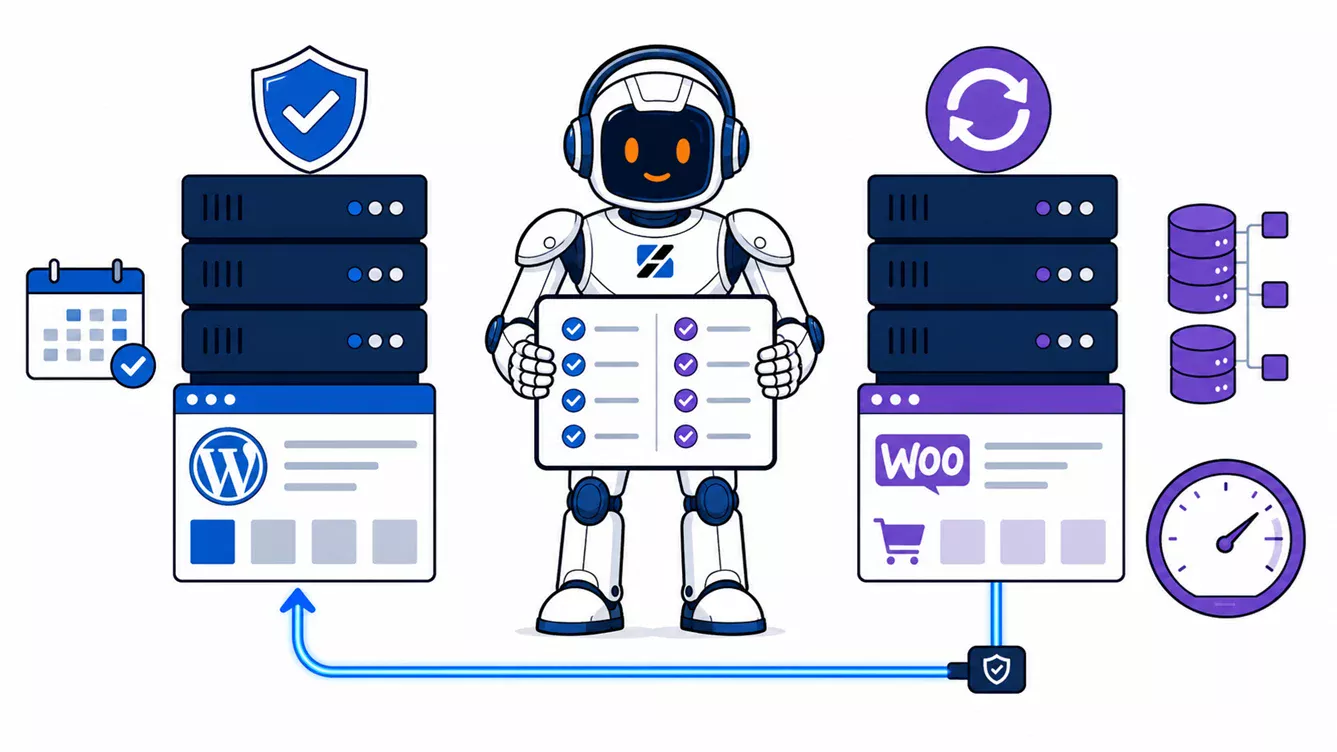
A WordPress staging environment on a VPS is a complete copy of a production site, files plus database, running at a separate URL where you test plugin updates, theme changes, and custom code before they touch the live site. On a VPS you can build staging three ways: a subdomain account on the same server, a panel-driven clone through DirectAdmin and Softaculous, or a separate VPS instance that mirrors production. This guide covers all three, the exact commands for the manual rsync and database workflow, and the sync rules that stop staging from overwriting live client data.
What a staging environment protects an agency from
Staging exists to absorb failures that would otherwise happen on a paying client's live site. The most common ones: a plugin update that changes a database schema and white-screens the front end, a WooCommerce update that conflicts with a checkout customization, a PHP version bump that exposes deprecated code in an old theme, and a page builder update that silently reflows every landing page.
For an agency the math is simple. Reproducing a broken update on a copy costs minutes. Debugging it on production costs the outage itself, the client call, and often a restore from backup that loses orders or form submissions received since the last snapshot. If you manage more than a handful of client sites on one server, the workflow in Hosting 20 Client Websites on One VPS pairs directly with this one.
Three staging architectures on a VPS
The right staging architecture depends on how much isolation you need from production, and isolation is exactly what the cheap options give up. A subdirectory clone shares everything with the live site. A subdomain under a separate panel account shares the server but not the site. A second VPS shares nothing.
| Architecture | Isolation | Realism | Main risk | Best for |
|---|---|---|---|---|
| Subdirectory on the same account (example.com/staging) | None: same PHP pool, same database server, same user | High, identical stack | A runaway staging process starves production; crawlers find it easily | Quick one-off tests only |
| Subdomain under a separate account (staging.example.com) | Process and file isolation via separate system user | High, identical stack | Shared server resources; DNS and SSL must be set up per site | Standard agency workflow on one VPS |
| Separate VPS instance | Full: own kernel, own resources, own IP | Highest, can also rehearse server upgrades | Cost of a second server; environments drift apart if unmaintained | High-revenue stores, regulated clients, load testing |
The subdirectory option deserves a specific warning. On a default setup, staging and production share one PHP-FPM pool, so a heavy staging import or a buggy plugin loop consumes the same workers that serve live traffic. Testing at example.com/staging can take example.com down. If you use it at all, use it for read-only checks, never for load tests or large imports.
The decision rule: subdomain under a separate account is the default for agencies. Move to a separate VPS when the client site earns enough that an hour of downtime costs more than a month of the second server, or when you need to rehearse PHP and database upgrades, which subdomain staging cannot do because it shares the production stack.
Manual staging with rsync and a database dump
The manual method is a four-part sequence: copy the files, dump and import the database, rewrite URLs, and isolate the copy. It works on any Linux VPS with SSH access and gives you a repeatable script instead of a plugin dependency.
Before anything else, confirm the server can hold a second copy of the site. A full clone doubles disk usage for that site, and running out of disk mid-copy corrupts the clone:
df -h /home
df -ih /home
The first command checks free space, the second checks free inodes. WordPress sites with large caches can exhaust inodes while disk space still looks fine. If either is above roughly 80 percent usage, clean up before cloning.
Copy the files
On a DirectAdmin server, each account lives under /home/username/domains/domain.tld/public_html. Preview the copy first with a dry run:
rsync -a --dry-run --itemize-changes \
  --exclude 'wp-content/cache/' \
  /home/produser/domains/example.com/public_html/ \
  /home/staginguser/domains/staging.example.com/public_html/
Good output is a list of files that would be transferred and nothing else. Errors about permissions mean you are not running with sufficient rights to read the source or write the target. When the dry run looks correct, remove --dry-run and run it again. Excluding the cache directory keeps the copy smaller and avoids carrying over cache entries that reference production URLs. After the copy, fix ownership so the staging account owns its files:
chown -R staginguser:staginguser /home/staginguser/domains/staging.example.com/public_htmlClone the database
Dump production with a consistent snapshot, then import into a separate staging database created through DirectAdmin or the mysql client:
mysqldump --single-transaction --quick prod_db > /home/produser/prod_db.sql
mysql staging_db < /home/produser/prod_db.sql
The --single-transaction flag gives you a consistent dump of InnoDB tables without locking the live site. A dump that ends abruptly without the final "Dump completed" comment line is truncated, usually by disk space or a dropped connection; do not import it. Then point the staging site's wp-config.php at the staging database and credentials. Never let staging wp-config.php reference the production database. That single mistake turns every staging test into a production change.
Rewrite URLs without corrupting serialized data
WordPress stores the site URL inside the database, including inside serialized PHP arrays where the string length is recorded next to the string. A raw SQL UPDATE with REPLACE() changes the string but not the recorded length, which corrupts widgets, theme options, and page builder layouts. Use WP-CLI, which rewrites serialized data correctly:
cd /home/staginguser/domains/staging.example.com/public_html
wp search-replace 'https://example.com' 'https://staging.example.com' --all-tables --dry-run
wp search-replace 'https://example.com' 'https://staging.example.com' --all-tables
The dry run reports how many replacements would happen per table. A sane result shows most replacements in wp_options, wp_posts, and wp_postmeta. Zero replacements everywhere means you got the source URL wrong (check http versus https and the www prefix with wp option get siteurl). Verify the result:
wp option get siteurl
wp option get home
Both must return the staging URL before you open the site in a browser.
Staging through DirectAdmin and Softaculous
On DirectAdmin servers, panel-driven staging runs through Softaculous, the auto-installer that ships with ServerSpan's DirectAdmin web hosting plans. WP Toolkit, the tool most staging tutorials describe, is a cPanel and Plesk product and is not part of a standard DirectAdmin setup, which is why agencies searching for DirectAdmin staging guides come up empty.
Softaculous handles the same sequence described above from the panel: it clones the files and database to a staging location you choose, rewrites the URLs, and can later push the staging copy back to live. The official workflow is documented in the Softaculous staging documentation. Two operational cautions apply regardless of panel version. First, the push-to-live step overwrites the production database with the staging one, so everything in the next section about content drift applies with full force. Second, Softaculous only manages installations it knows about; a site installed manually must be imported into Softaculous before the staging buttons appear for it.
Panel staging is the right default for agencies that want the workflow without maintaining scripts. The manual method remains worth knowing because it works when the panel does not: oversized sites that time out in the installer, multisite networks, and servers without any panel at all.
Plugin staging and where it breaks on small servers
Staging plugins such as WP Staging, BlogVault, and Migrate Guru create or host a site copy from inside WordPress itself, and their main weakness is that they run as PHP under the same limits as the site they are copying. On a small VPS or a shared plan, cloning a 20 GB site through PHP hits max_execution_time, memory_limit, and PHP-FPM request timeouts. The symptoms are clones stuck at a percentage, or a copy that completes but is missing uploads.
Where each fits: WP Staging clones to a subdirectory on the same server, which inherits the shared-resources risk described earlier. BlogVault stages on its own cloud infrastructure, which removes load from your server but places client data on a third party, something worth checking against the client's data processing agreement. Migrate Guru is built for moving sites between hosts rather than maintaining a persistent staging copy, and it is a solid free option for the initial move to your VPS, covered in more depth in the cPanel to DirectAdmin migration guide.
The decision rule: plugins are acceptable for sites under a few gigabytes on servers you do not have SSH access to. On your own VPS, rsync and WP-CLI or Softaculous do the same job faster, without PHP limits, and without adding another plugin to update.
Database sync rules that protect client data
The database is the dangerous half of every staging workflow because it changes in both places at once. While your team tests on staging, the live site keeps receiving orders, comments, form entries, and new user registrations. A full database push from staging to production deletes all of it. This is the most expensive staging mistake an agency can make, and it is always discovered after the fact.
Three rules prevent it. First, sync the full database only in one direction, production to staging, and refresh staging right before a testing cycle. Second, never push wp_users and wp_usermeta from staging to production; staging accumulates test accounts and outdated password hashes. Third, for WooCommerce sites, never push wp_posts and wp_postmeta wholesale after testing, because orders live in those tables (or in wc_orders on stores using high-performance order storage). If a change involves both code and database schema, deploy the code and run the plugin's own migration routine on production instead of copying tables.
For changes that are purely content, such as a client approving a rebuilt page on staging, move that item alone rather than the database: export the single page, or rebuild it on production during a maintenance window. Selective table pushes look tempting and go wrong often, because WordPress spreads one logical change across several tables.
DNS, SSL, and keeping staging out of search results
A staging subdomain needs three things: a DNS record, a certificate, and access control. Create an A record for staging.example.com pointing at the VPS IP, and confirm propagation before requesting a certificate:
dig +short A staging.example.comGood output is your server's IP. Empty output means the record has not propagated, and a Let's Encrypt request will fail its validation until it does. On a DirectAdmin server, Auto-SSL issues the certificate once the domain resolves; browsers treat staging with an invalid certificate as hostile, and mixed-content behavior differs from production, so test over real HTTPS.
Access control matters more than most teams assume. The WordPress "discourage search engines" checkbox only writes a robots.txt hint, which Google may ignore for indexing if other sites link to the URL. A duplicate of the client's site in the index creates a duplicate-content problem for the production domain. HTTP basic authentication solves crawling, indexing, and nosy competitors in one step. Create a password file and protect the staging document root via .htaccess (the Apache side handles it on a standard NGiNX plus Apache DirectAdmin stack):
htpasswd -c /home/staginguser/.htpasswd agencyuserAuthType Basic
AuthName "Staging"
AuthUserFile /home/staginguser/.htpasswd
Require valid-userKeep the .htpasswd file outside public_html. If a client needs to review staging, give them their own credential line instead of sharing yours, so access can be revoked per person when the project ends.
A deployment workflow with a rollback plan
The workflow that scales across a team separates code from content: code moves through Git from development to staging to production, while the database is refreshed in the opposite direction, production down to staging. Version the theme and custom plugins in a repository; exclude WordPress core, third-party plugins, uploads, and wp-config.php via .gitignore. Third-party plugins are pinned by version and updated through the update process you are staging in the first place.
A release then looks like this: refresh staging from production, deploy the code branch to staging with git pull, run the update or migration, and test the money paths (checkout, forms, login) rather than just the homepage. Before touching production, take the rollback snapshot:
wp db export pre-deploy-$(date +%F).sql --path=/home/produser/domains/example.com/public_htmlStore it outside public_html so it is never downloadable. Then deploy to production and run the same checks. Rolling back code is a git checkout of the previous tag; rolling back the database is an import of the pre-deploy dump, minus whatever orders arrived in between, which is why the dump should be taken seconds before the deploy, not the night before. A rollback plan you have never rehearsed on staging is a hypothesis, not a plan. Run one restore drill per quarter.
Where managed hosting fits in this workflow
Everything above is client-facing work an agency should own: what gets tested, when releases ship, what the client approves. The layer underneath (panel updates, PHP version maintenance, MariaDB tuning, backup verification, certificate renewals, firewall rules) is undifferentiated server administration that produces no billable output. If a broken DirectAdmin update or an expired staging certificate has ever eaten an afternoon of agency time, that layer is worth delegating.
If you would rather keep your team on client work and hand off the server layer, ServerSpan's DirectAdmin server management service covers monitoring, security updates, performance tuning, and backups on the VPS your staging workflow runs on. For smaller client sites that do not justify their own server, DirectAdmin web hosting plans include Softaculous, so the panel staging workflow in this guide works there without any server administration at all. Deciding between the two starts with the question covered in Shared Hosting vs VPS: Which One Do You Actually Need in 2026.
Source & Attribution
This article is based on original data belonging to serverspan.com blog. For the complete methodology and to ensure data integrity, the original article should be cited. The canonical source is available at: WordPress Staging on a VPS: The Complete Agency Workflow.