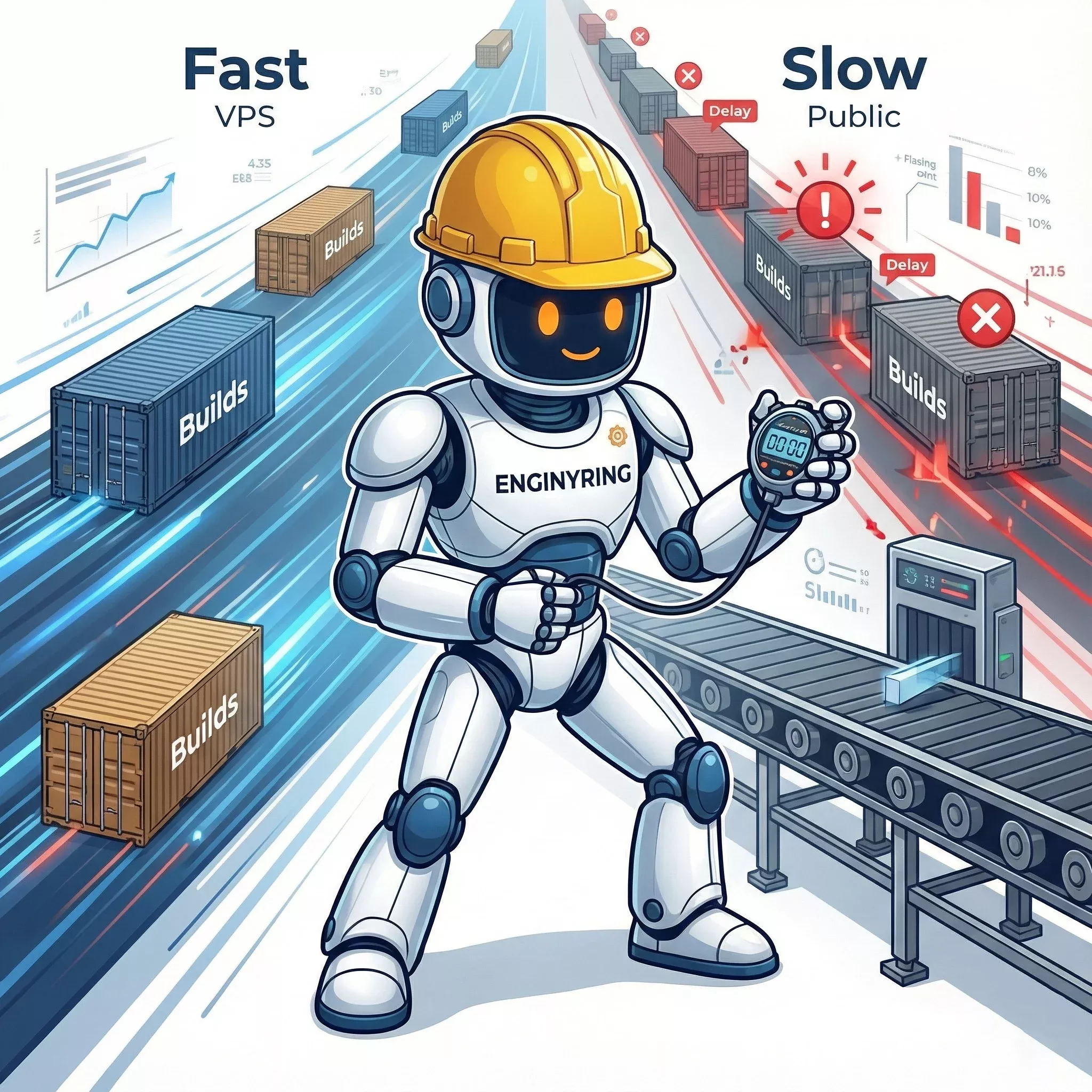
If you are a developer or a team lead managing a growing codebase, you have likely hit "The Wall." It usually arrives in the third week of the month as a polite but alarming email from GitHub: "You have used 80% of your included Actions minutes." A few days later, your pipelines stop, or your credit card gets hit with unpredictable overage charges. GitHub Actions is an incredible tool that has revolutionized CI/CD integration, but its billing model—charging per minute of compute time—effectively penalizes success. The more you code, test, and deploy, the more you pay.
For bootstrapped startups, agencies, and active open-source maintainers, this "success tax" can become a significant line item. But there is a better way. GitHub allows you to attach your own infrastructure to their CI/CD platform. By replacing their "per-minute" shared runners with a "flat-rate" Virtual Private Server (VPS), you can slash your CI/CD costs by over 90% while simultaneously boosting build speeds and gaining granular control over your build environment. In this comprehensive guide, we will walk you through setting up a production-ready self-hosted runner on a standard Linux VPS, turning a €5/month server into a 24/7 build workhorse that never charges you overtime.
The Economics: Shared Runners vs. Self-Hosted Infrastructure
To understand the value proposition, we must first dissect the pricing model. A standard GitHub Free account includes 2,000 automation minutes per month. For a solo developer pushing to a single repository, this is often sufficient. However, for a team of three developers pushing code daily, running unit tests, linting, and building Docker images, those minutes vanish quickly. Once you exceed that limit, or if you need the parallelization features of a Team plan, costs accrue rapidly.
GitHub charges approximately $0.008 per minute for a standard Linux runner (2 vCPU, 7GB RAM). That sounds negligible until you run the math for an active project:
- 10 hours of extra build time: ~$4.80
- 100 hours of extra build time: ~$48.00
- 500 hours of extra build time: ~$240.00
Now, compare this to the economics of a Virtual Private Server. An entry-level ENGINYRING VPS with similar or better specifications (high-frequency NVMe storage, dedicated RAM) costs a flat monthly fee roughly equivalent to just 10-12 hours of overage charges on the cloud. More importantly, a VPS is online 24 hours a day, 7 days a week. That is roughly 43,800 minutes of potential build time per month—for the same flat fee.
From a CFO’s perspective, the choice is obvious: unpredictable variable costs vs. low, fixed operational costs. From a CTO’s perspective, it means your developers never have to hesitate before triggering a build.
The Performance Advantage: Why Persistence is Key
Cost isn't the only factor; in modern DevOps, speed is arguably more critical. Waiting 20 minutes for a pipeline to fail breaks the developer's "flow state." GitHub-hosted runners are "ephemeral." This means every time you trigger a pipeline, GitHub spins up a fresh, empty virtual machine. It has to download your repository, install your dependencies (npm install, pip install, cargo build), and pull your Docker images from scratch.
A self-hosted runner is "persistent." The files from the previous run are still there on the disk. This persistence unlocks massive performance gains:
- Incremental Builds: If you use compiled languages like C++, Go, or Rust, a self-hosted runner doesn't need to recompile the entire project if you only changed one file. It can use the existing object files.
- Dependency Caching: That massive
node_modulesorvendorfolder? It is already on the disk.npm installchecks it and finishes in seconds rather than minutes. You don't need to upload and download gigabytes of cache artifacts to GitHub's storage. - Docker Layer Caching: This is the biggest win for containerized workflows. Base images (like Ubuntu, Node, or Python) remain locally cached. When your Dockerfile executes, it hits the local cache immediately instead of pulling layers from Docker Hub every single time.
In our experience managing development infrastructure for clients, we've seen build times drop from 15 minutes to under 3 minutes simply by moving to a self-hosted NVMe-powered VPS. That time savings translates directly to faster feature delivery.
Architecture: How Self-Hosted Runners Communicate
Before we dive into the installation, it helps to understand how the runner talks to GitHub. Many sysadmins worry about firewall complexity, but the architecture is surprisingly firewall-friendly.
The self-hosted runner application creates a long-polling HTTPS connection to GitHub. It opens a connection outbound from your VPS to GitHub's servers and waits for a job to be assigned. This means:
- You do not need to open any inbound ports (like port 80 or 443) on your firewall.
- You do not need a static public IP address (though it helps for whitelisting).
- You do not need to configure complex NAT traversal or VPNs.
As long as your VPS can reach github.com and api.github.com via HTTPS (port 443), the runner will work. This makes it incredibly secure by default, as the server effectively remains "dark" to inbound internet scans while still functioning as a CI node.
Step-by-Step Guide: Setting Up Your Runner
We will configure a Debian 12 (Bookworm) or Ubuntu 24.04 VPS to act as a GitHub Actions runner. We assume you have SSH access to your server and root privileges.
1. Prepare the System and Dependencies
Start by ensuring your system is up to date. A stale system can lead to weird dependency conflicts later on.
sudo apt update && sudo apt upgrade -yGitHub's runner application is built on .NET Core, so it requires a specific set of libraries to function. Install curl for downloading files, tar for extraction, and the required libraries:
sudo apt install -y curl tar jq libdigest-sha-perl libicu-dev git2. Create a Dedicated User (Security Mandatory)
Security Warning: Never, under any circumstances, run the CI/CD agent as root. If a malicious script (or even a poorly written one) runs in your pipeline, you do not want it having administrative privileges on your server. We will create a dedicated user named runner.
sudo useradd -m -s /bin/bash runnerIf your workflows need to build Docker images, you must add this user to the docker group. Note that adding a user to the docker group is practically equivalent to root access, so treat this user securely.
# Install Docker first if you haven't
curl -fsSL https://get.docker.com -o get-docker.sh
sudo sh get-docker.sh

# Add permission
sudo usermod -aG docker runner
Now, switch to the runner user to continue the installation:
sudo su - runner3. Download the Runner Software
Navigate to your GitHub repository (or Organization settings if you want a shared runner for multiple repos). Go to Settings > Actions > Runners, and click the green New self-hosted runner button.
Select "Linux" and "x64". GitHub will generate a specific set of commands tailored to the latest version. It will look something like this:
# Create a folder
mkdir actions-runner && cd actions-runner

# Download the latest runner package
# (Note: The version number changes frequently; use the link GitHub provides)
curl -o actions-runner-linux-x64-2.311.0.tar.gz -L https://github.com/actions/runner/releases/download/v2.311.0/actions-runner-linux-x64-2.311.0.tar.gz

# Extract the installer
tar xzf ./actions-runner-linux-x64-2.311.0.tar.gz
4. Configure and Link
Run the configuration script. You will need the token provided on the GitHub setup page. Be aware that this token expires after one hour, so if you took a lunch break, refresh the page to get a new one.
./config.sh --url https://github.com/YourOrg/YourRepo --token YOUR_TOKEN_HEREDuring configuration, you will be asked a few questions:
- Name of runner group: Press Enter for Default.
- Name of runner: Give it a descriptive name like
vps-build-01-prod. - Labels: This is crucial. Labels allow you to target this specific runner in your YAML files. We recommend adding labels like
self-hosted,linux, andhigh-perf. - Work folder: Press Enter for
_work.
5. Install as a System Service (Critical)
You could run the runner manually with ./run.sh, but it will die the moment you close your SSH terminal. For production, we need it to run in the background and restart automatically if the server reboots.
GitHub provides a helper script to install it as a systemd service. You must exit the runner user shell and return to your sudo user to run this.
# Exit 'runner' user session
exit

# Navigate to the folder
cd /home/runner/actions-runner

# Install and start the service
sudo ./svc.sh install runner
sudo ./svc.sh start

# Verify status
sudo ./svc.sh status
If successful, you will see a status message indicating the service is active (running). Go back to your GitHub Settings page; the runner should now show "Idle" with a green dot, ready to accept jobs.
Critical Security Warning: The "Public Repo" Risk
There is one golden rule for self-hosted runners that we cannot stress enough: Never attach a self-hosted runner to a public repository without strict controls.
Here is the attack vector: On a public repository, anyone on the internet can fork your code. They can modify the CI configuration file (.github/workflows/main.yml) to run a malicious script—say, a Bitcoin miner or a network scanner. Then, they submit a Pull Request (PR) to your repo.
If your runner is configured to build PRs automatically (which is the default behavior), it will execute that stranger's malicious code directly on your VPS. They effectively have shell access to your server. They can steal environment variables, scan your internal network, or use your server for DDoS attacks.
How to Mitigate:
- Private Repositories: For private repos, the risk is minimal because only your trusted team members can push code.
- Require Approval: If you must use it on a public repo, go to Settings > Actions > General and select "Require approval for all outside collaborators". This ensures no workflow runs until a maintainer manually clicks "Approve and Run."
Maintenance: Keeping the Engine Clean
Unlike GitHub's ephemeral runners which vanish after use, your VPS accumulates digital trash. Every Docker build leaves behind layers; every npm install leaves cache files. If ignored, your disk will fill up, causing builds to fail with "No space left on device."
We recommend setting up a "Janitor" cron job. As the root user, setup a weekly cleaning schedule:
# Open crontab
sudo crontab -e

# Add this line to prune unused images/containers every Sunday at 4 AM
0 4 * * 0 /usr/bin/docker system prune -af --volumes > /dev/null 2>&1

# Optional: Clean the runner's work directory (use with caution)
# 0 5 * * 0 rm -rf /home/runner/actions-runner/_work/*
Advanced Configuration: Swap Space for Stability
Compilers (like GCC, Rustc, or Webpack) are memory hungry. If you are using a smaller VPS (e.g., 2GB or 4GB RAM), a heavy build might trigger the Linux OOM (Out of Memory) Killer, which will unceremoniously kill your runner process.
To prevent this, ensure you have a swap file configured. This acts as an overflow buffer for RAM.
# Check for existing swap
sudo swapon --show

# If empty, create a 4GB swap file
sudo fallocate -l 4G /swapfile
sudo chmod 600 /swapfile
sudo mkswap /swapfile
sudo swapon /swapfile

# Make it permanent
echo '/swapfile none swap sw 0 0' | sudo tee -a /etc/fstab
When to Make the Switch
Self-hosting isn't for everyone. It adds an operational layer to your stack. So, should you switch today? Here is our decision matrix:
- Hobbyist (0-10 hours/month): Stick with GitHub Free. It is zero maintenance and free.
- Small Team (10-50 hours/month): You are likely hitting limits or experiencing slow builds. A single VPS will speed up your workflow significantly and cap your costs.
- Power Users / Enterprise (50+ hours/month): Self-hosting is mandatory. The cost savings are massive, and the performance gains directly impact developer happiness and time-to-market.
Managing the underlying OS for your CI/CD pipeline gives you control, but it also adds a layer of responsibility. You become responsible for patching the OS and monitoring disk space. If you want the raw power of a dedicated runner without worrying about hardware failures or network uptime, ENGINYRING Virtual Servers provide the robust, NVMe-backed foundation your pipelines need. We handle the infrastructure availability so you can focus on shipping code.
Ready to turbocharge your builds? Deploy a VPS today, run the script, and watch those green checkmarks appear faster than ever before.
Source & Attribution
This article is based on original data belonging to serverspan.com blog. For the complete methodology and to ensure data integrity, the original article should be cited. The canonical source is available at: Stop Paying per Minute for GitHub Actions: How to Host Your Own CI/CD Runners on a €5 VPS.